

MCP servers
MCP is the Model Context Protocol. MCP servers provide extra tools and resources to pi.
PiS manages the MCP configuration files. pi handles connections, authentication, and tool calls.
Configuration files
pi reads two files:
Rules:
- A project entry overrides a user entry with the same name.
- Project configuration loads only after the project is trusted.
- A project entry can contain only fields such as
enabled, and inherit connection details from the user entry. - PiS does not delete unknown fields when it edits a file.
PiS does not connect to servers and does not store MCP credentials.
Open the dialog
Open it from the command palette or Settings:
- Press
⌘K. - Select Manage MCP servers….
- Or click MCP servers… in Settings.
The dialog needs a current project. Without a project, it asks you to open one.
View servers
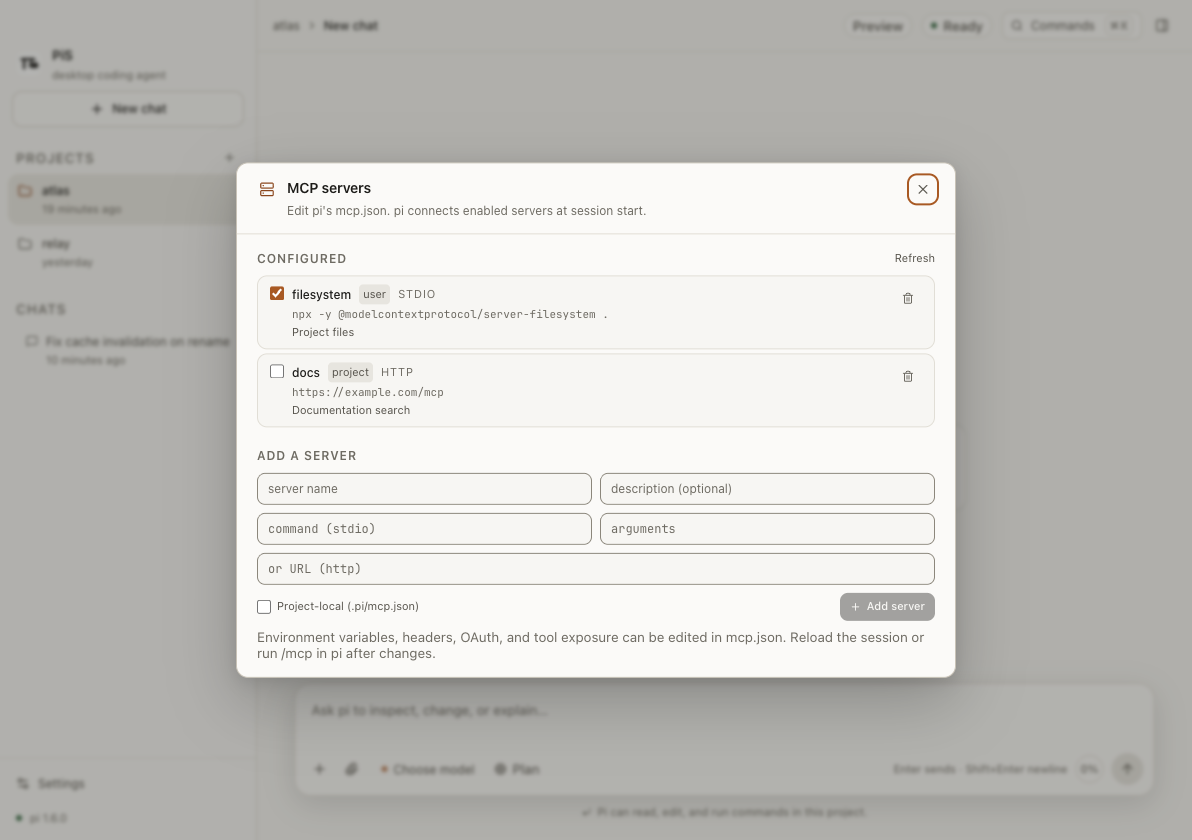
The Configured list shows the merged servers.
Each entry shows:
- The name.
- The source:
userorproject. - The type:
stdioorhttp. - The command and arguments, or the URL.
- The description.
- The enabled checkbox.
- The remove button.
The enabled checkbox writes to the file that defines the server:
- A user-level server writes to the user
mcp.json. - A project-level server writes to the project
mcp.json.
After saving, reload the session. You can also run /mcp in pi to reconnect.
Add a server
The form at the bottom of the dialog adds a server.
Fields:
Enter a command or a URL. Do not enter both.
After you click Add server:
- PiS reports an error if the name already exists. It does not replace the old entry.
- PiS writes the new entry to the selected file.
- PiS checks the JSON and writes the file atomically.
PiS splits arguments on spaces. If an argument contains a space, add the server first, then edit mcp.json.
Advanced fields
Edit these fields in mcp.json by hand:
- Environment variables:
env. - HTTP headers:
headers. - OAuth configuration.
- Timeout:
timeout. - Tool exposure:
exposureandtoolExposure. - Working directory:
cwd.
PiS preserves these fields. Changing the enabled state or removing another entry does not clear them.
Remove a server
Click the remove button on an entry.
After you confirm, PiS deletes the entry from its file.
Removing a server does not uninstall the package. For example, a package downloaded by npx remains in the local cache.
Common problems
A project server is missing
Check project trust. An untrusted project does not load .pi/mcp.json.
No tools after adding a server
- Reload the session.
- Run
/mcpin pi and check the connection state. - Check that the command exists, or that the URL is reachable.
- Check that
mcp.jsonis valid JSON.
The server fails to start
pi reports the error in the session. Check:
- The command path.
env.- Network and proxy settings.
- The server log.
Name conflict
Server names can contain only letters, digits, _, and -. Names that differ only in - and _ can be treated as the same server.
Use a unique name. Do not rely on case to separate names.
Next
- Models and sign-in: configure models.
- Extensions: learn about other pi extensions.
- Troubleshooting: solve connection problems.