Window and interface
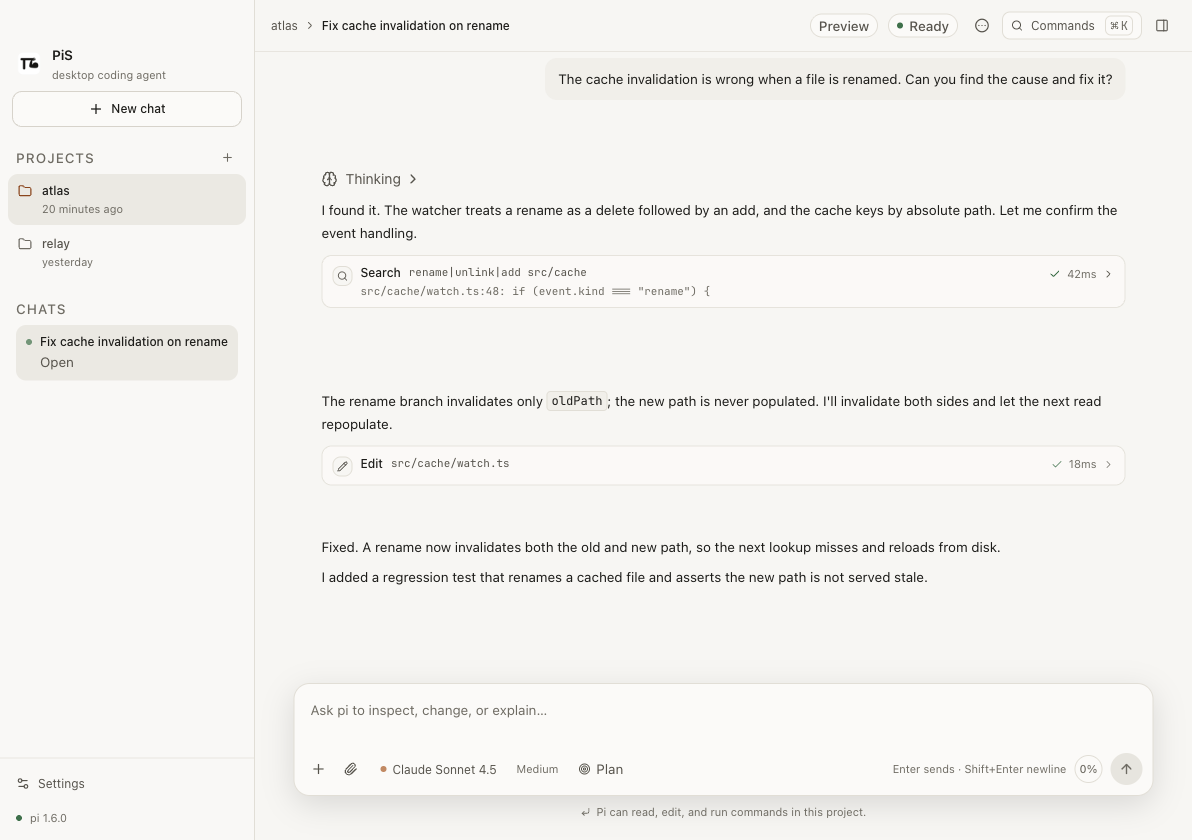
The PiS window has five areas: the sidebar, the top bar, the transcript, the composer, and the right panel.
Sidebar
The sidebar is on the left. You can hide it.
- The top has the PiS name and the New chat button.
- Projects lists recent projects. Click a project to switch workspace.
- Chats lists recent sessions for the current project. Click a session to resume it.
- The bottom has Settings and the current pi version.
Press ⌘B (Ctrl+B on Windows and Linux) to show or hide the sidebar.
Top bar
The top bar shows the current location and state.
- The left side shows "project > session".
- The Ready, Working, Needs input, Error, and Sleeping labels show the session state.
- The Commands button opens the command palette. You can also press
⌘K(Ctrl+Kon Windows and Linux). - The button on the right shows or hides the right panel. The shortcut is
⌘⇧G.
A running session keeps the Working label. A session that waits for an approval shows Needs input.
Transcript
The transcript shows the current session.
- User messages appear as bubbles.
- Assistant messages support Markdown, tables, code blocks, math, and Mermaid diagrams.
- Thinking blocks are collapsed by default. Click the title to expand one.
- Tool calls appear as cards. Click a card title to expand arguments, output, diffs, and images.
- Context compaction, branch summaries, and extension messages appear as separators.
- When you scroll up, new messages do not pull you back to the bottom. Click the down button at the bottom to return to the latest message.
Long sessions use a virtual list. PiS renders only the messages near the visible area.
Composer
The composer is at the bottom. It sends messages, adds files, and selects the model.
See Composer for the full use.
Right panel
The right panel is hidden by default. Click the button at the right of the top bar, or press ⌘⇧G.
The right panel has four tabs:
See Changes and files for the full use.
Inline dialogs
Approvals and extension dialogs appear above the composer. They do not cover the transcript.
- An approval dialog shows the tool name, command or path, risk reason, and options.
- An extension dialog supports select, confirm, input, and multiline edit.
- PiS shows one dialog at a time. Click the close button at the top right to cancel a request. Queued requests appear after the current one.
Quit guard
If sessions are running, PiS asks before you quit.
- Cancel keeps the app open.
- Quit and stop stops all pi processes.
Session files stay on disk and can be resumed later.
Menus
The menu bar provides common actions:
- File: New chat, Open project, Close session, Settings.
- View: Command palette, sidebar, right panel, reload, developer tools, zoom, full screen.
- Session: Stop run, Compact context, Session tree, Model & thinking, Rename, Export as HTML, Reveal session file.
- Help: Check for updates, pi documentation, mygo documentation.
Windows and Linux use a window menu with the same text. Chinese mode does not translate native menus.