Composer
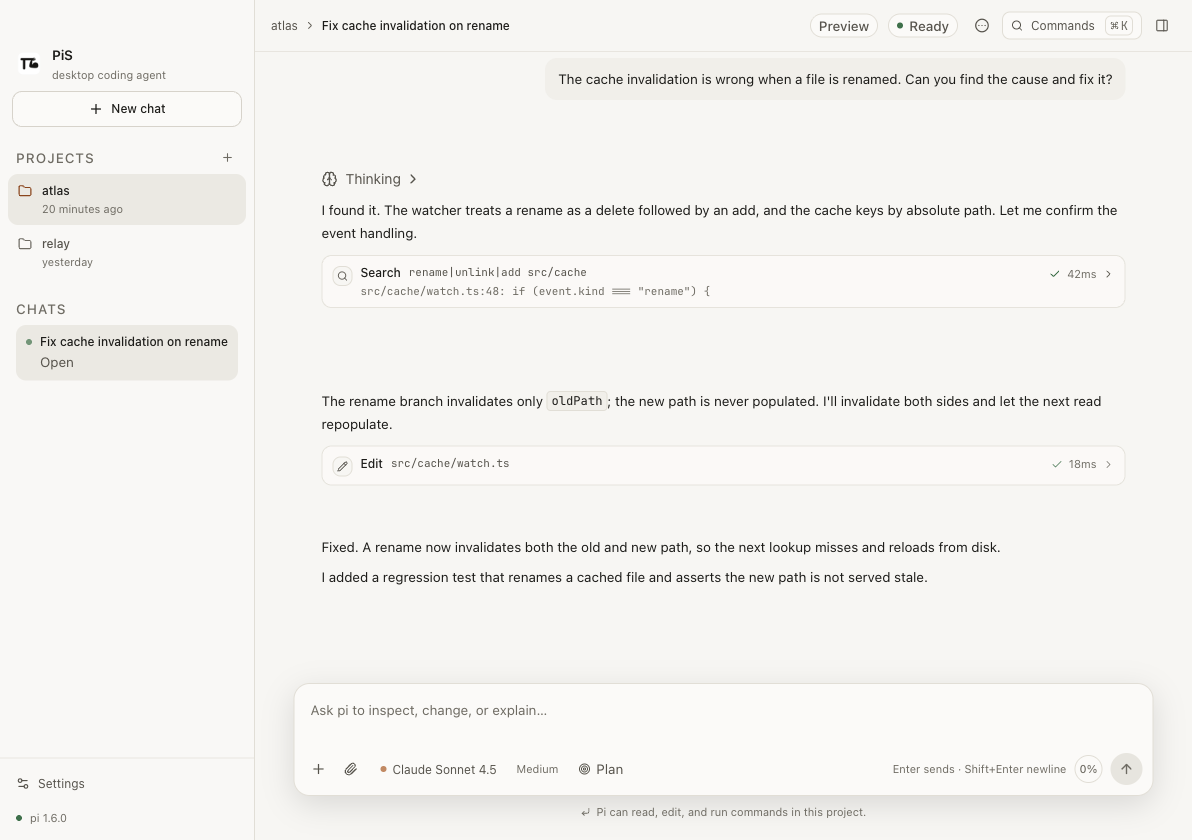
The composer sends messages and selects files, models, and work modes.
Send a message
With the default settings:
- Press Enter to send.
- Press Shift+Enter for a new line.
If you turn off Send on Enter:
- Press Enter for a new line.
- Press
⌘Enter(Ctrl+Enteron Windows and Linux) to send.
The setting is in Settings > Text and input. The composer shows the current key hint at the bottom right.
While pi runs, Enter adds the message to the current run. The hint shows "Enter queues · Esc stops".
Stop a run
A running session shows a square stop button.
- Click the stop button to stop the current run.
- Press Esc to stop. When an inline dialog is open, Esc does not stop the run.
Stop affects only the current session. Other sessions keep running.
Drafts
Each session keeps its own draft.
- Switching sessions keeps the draft.
- Closing PiS keeps the draft in local storage.
- When a send fails, the message and attachments return to the composer.
Drafts stay on this computer. They do not enter the pi session file.
Insert a project file
Type @ to search project files.
- Type
@in the composer. - Type part of a file name or path.
- Select a file in the suggestion list.
Controls:
↑and↓move the selection.- Enter or Tab inserts the file.
- Esc closes the suggestion list.
The composer inserts @path. pi reads the file with its own file tools.
The file list comes from Git. Without Git, PiS walks the project directory. It skips common build and dependency directories.
Use pi commands
Type / at the start of the composer to list pi commands.
Commands come from:
- Commands registered by pi extensions.
- Prompt templates.
- Skills.
Select a command to insert /command. pi runs it after you send the message.
PiS also has commands that start with pis-, for example /pis-plan. The interface usually calls these commands. You do not need to type them.
Add attachments
The composer accepts images and text files.
- Click the paperclip button, then select a file.
- Paste an image.
- Drag a file into the composer.
Limits:
Images are sent as image attachments for the message. Text is appended to the message inside a <file> tag.
Attachments appear above the composer. Click the delete button on an attachment to remove it.
Select a model and thinking level
The composer shows the current model.
- Click the model name to open the model picker.
- After you select a model, PiS asks pi to switch the model for the current session.
- The model sets the available thinking levels. pi provides the levels.
- The model picker also turns automatic context compaction on or off.
The model list comes from pi configuration and sign-in state. If no model is available, the composer shows a sign-in prompt.
Context usage
The bottom right of the composer shows the context usage percentage.
- The percentage comes from pi session statistics.
- pi can compact the context automatically near the limit.
- You can turn off automatic compaction in the model picker, or compact manually from the menu.
After compaction, the transcript shows a summary. Old messages stay on disk. pi uses the summary for the older context.
Plan toggle
The Plan button below the composer switches plan mode.
In plan mode:
- pi uses read-only tools.
- PiS blocks file changes and common mutating commands.
- The model writes a plan first.
Click the button again to turn plan mode off.
If the project already has another plan command, the button inserts that command instead of controlling the built-in plan mode.
Plan mode is not a sandbox. See Trust, approvals, and plan mode.
Send button
The round button on the right sends the message.
The send button is disabled when:
- pi is not available or the version is not compatible.
- The session is loading.
- The composer is empty and has no attachments.
When pi is not available, the composer shows "Connect a provider to start". Sign in first.
Next
- Changes and files: review changes from tools.
- Models and sign-in: manage models and providers.
- Keyboard shortcuts: see all shortcuts.