Changes and files
The right panel shows project changes, files, plans, and subagent activity.
Open the right panel
Use one of these methods:
- Click the button at the right of the top bar.
- Press
⌘⇧G(Ctrl+Shift+Gon Windows and Linux). - Select View > Toggle changes panel from the menu.
The panel has four tabs: Changes, Files, Plan, and Agents.
The top of the panel shows the current Git branch and the number of commits ahead of or behind the remote.
The refresh button at the top right rereads Git status and the file list.
Changes
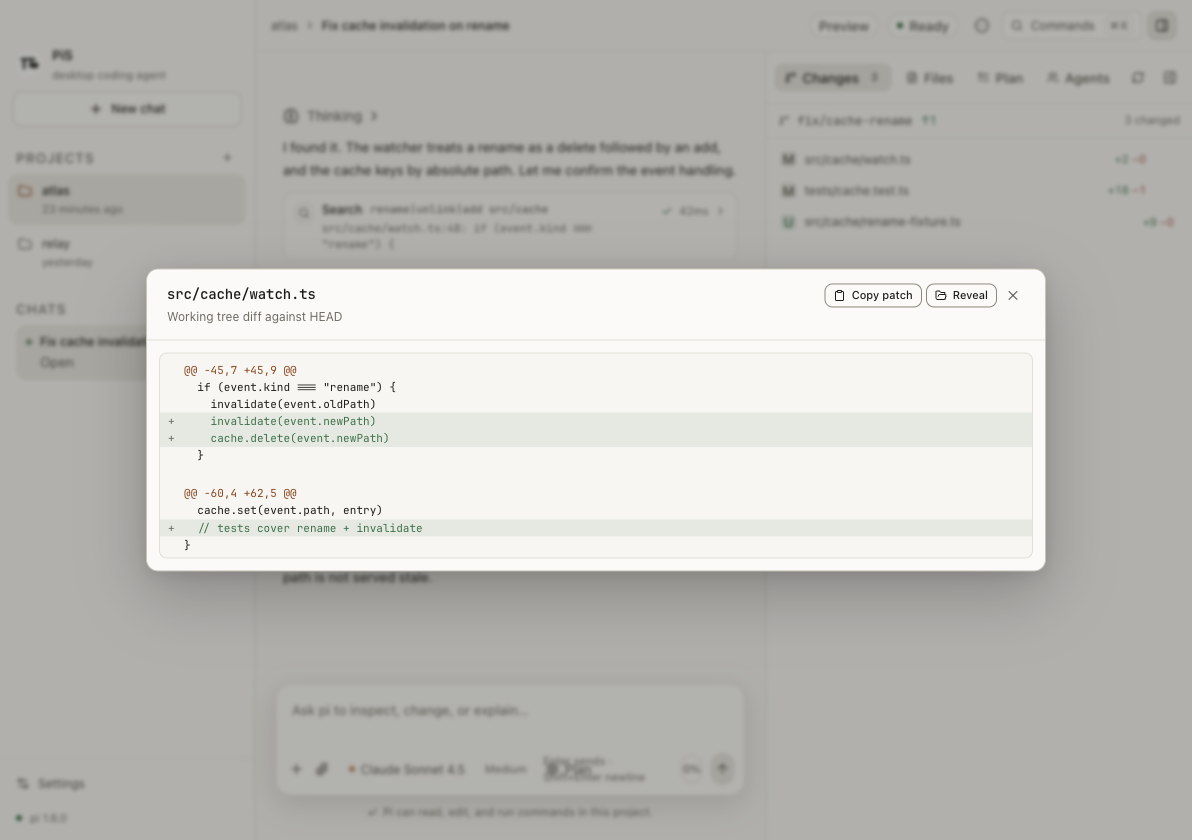
The Changes tab lists changes in the working tree.
Each file shows:
- A status letter:
Mmodified,Aadded,Ddeleted,Rrenamed,Ccopied,Uuntracked or conflicted. Untracked files show a greenU; conflicts show a grayU. - The file path. A renamed file also shows the old path.
- Added and deleted line counts.
- A staged marker. A blue dot means the file has staged content.
Without a Git repository, the panel shows "Not a git repository".
Without changes, the panel shows "No changes".
View a diff
Click a file name to open the diff dialog.
- The diff compares the working tree with
HEAD. - It includes staged and unstaged changes.
- An untracked file appears as a full addition.
- A binary file has no text diff.
The dialog can copy the patch. You can send the patch to other tools or save it.
The Reveal button opens the file with the default system application.
Revert a file
Move the mouse over a file row, then click the revert button on the right.
PiS shows a confirmation dialog. After you confirm:
- The file returns to the
HEADcontent. - Staged and unstaged changes are discarded.
- PiS has no undo.
An untracked file has no HEAD version and cannot be reverted.
Revert only files you have checked. Revert changes the working tree directly.
Files
The Files tab lists project files.
- The search box at the top filters by path.
- Click a file to open a read-only preview.
The preview shows file content. Text files can be copied.
- A file larger than 512 KB is truncated.
- A binary file shows only its size.
- The Open button opens the file with the default system application.
The file list comes from Git. Without Git, PiS walks the project directory and skips common build and dependency directories.
The list shows up to 300 files. Use the search box to narrow a large project.
Plan
The Plan tab shows the pi todo list.
- A completed step has a check mark.
- The current step is highlighted and has a Current label.
- The tab shows the completed count and total count.
The plan comes from pi todo state. PiS reads it and does not change it.
Agents
The Agents tab shows subagent activity.
Each row shows:
- The subagent name or description.
- The agent type.
- The status: running, complete, or error.
- A result excerpt.
Subagent activity comes from pi tool calls and results. PiS does not start its own subagents.
Refresh timing
The right panel refreshes automatically when:
- You switch sessions.
- The session produces a new message.
- The run state changes.
- You click the refresh button.
Git commands run on this computer. The first read can be slow in a large repository.
Next
- Trust, approvals, and plan mode: control change permissions.
- Worktrees: work in parallel directories.
- Troubleshooting: solve Git and file problems.